
Who Can Still Open the Files You Shared? A Guide to Checking Old Links
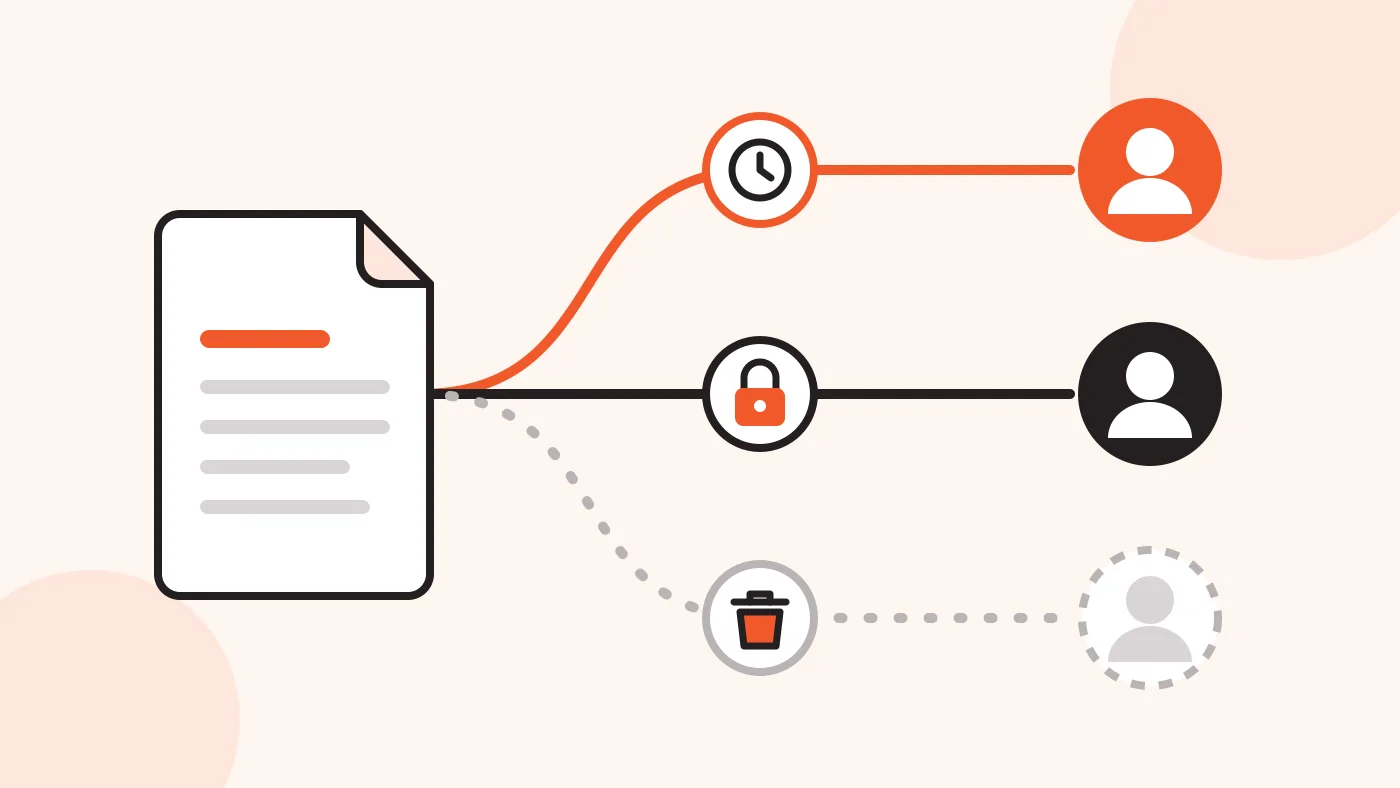
You shared a file with a link some months ago. The project is finished, but the link may still work today.
In short: Old sharing links often stay active long after you need them. Check them regularly, remove the links you do not need, and use transfers with an end date for new files.
Why old links are a risk
WIRED recently published a guide about checking the cloud storage links you have shared. The topic is important, because most people create sharing links and then forget them.
| Situation | What goes wrong |
|---|---|
| No end date | The link can work for years. |
| Forwarded link | People you do not know can open the file. |
| Link in an old email | Anyone who can read that inbox can also open the file. |
| Finished project | Former clients or colleagues still have access. |
A sharing link is like a key. Every person who has the key can open the door, so you need to know which keys still exist.
How to check your old links
- Open every cloud storage service that you use and find the list of shared files.
- Look for links that anyone with the link can open without signing in.
- Remove the links for finished projects, former colleagues and old clients.
- For the links you keep, add a password or an end date if the service offers these options.
- Repeat this check every few months.
How SendGB limits the risk
A file transfer is different from a permanent cloud folder. It is made for one delivery, and it ends.
- Every transfer has an end date. You choose the storage time when you send your files. On the free service, a transfer of up to 250 MB can stay up to 90 days, and a larger transfer can stay up to 7 days. After that, the files are deleted and the link stops working.
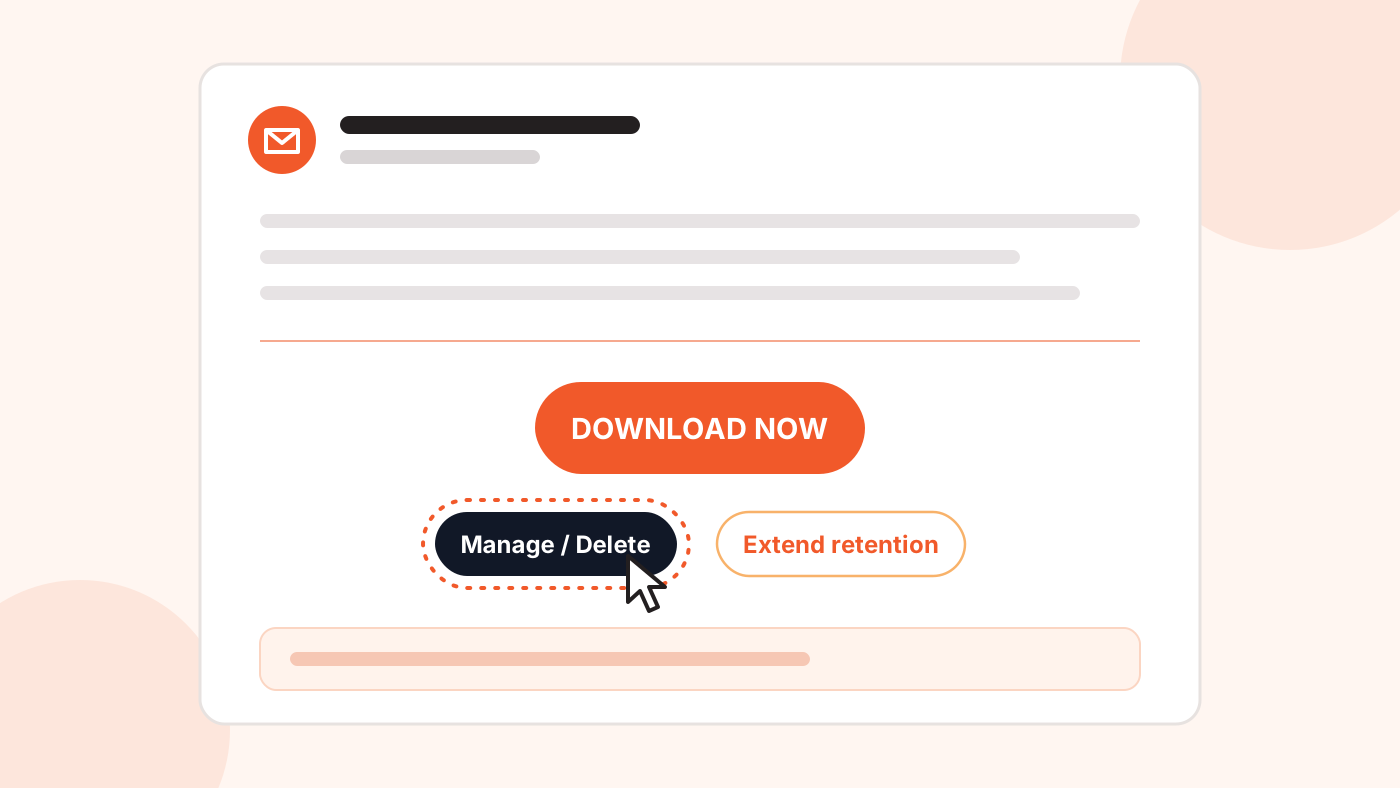
- You can delete a transfer early. When you send in email mode, SendGB sends an information email to you, the sender. This email has a Manage / Delete button. Click it to remove the transfer before its end date. You do not need an account.
- You can add a password. The option is in the transfer settings, and you do not need an account to use it. The recipient then needs both the link and the password.
The recipient does not need an account. They open the link, enter the password if you set one, and download the files.
Your files are also protected on the way. SendGB encrypts data during the transfer (TLS) and while it is stored (AES-256).
Which option to use
| Your situation | What to do |
|---|---|
| Sensitive files | Add a password. Send the password in a different channel, for example by phone. |
| Short job | Choose a short storage time. |
| Wrong recipient | Click Manage / Delete in your email and remove the transfer. |
| Job finished early | Delete the transfer. Do not wait for the end date. |
| More time needed | Use the button in the same email to extend the storage time. |
Frequently asked questions
Do I need an account to delete a transfer?
No. If you send in email mode, the email that SendGB sends to you has a Manage / Delete button. You can delete the transfer from there.
Does the recipient need an account?
No. The recipient only needs the download link, and the password if you set one.
What happens when the storage time ends?
The files are deleted and the link stops working. Deleted files cannot be recovered, so keep your own copy.
Can I add a password without an account?
Yes. Password protection is part of the free service. Send the password separately from the link.
Is the number of downloads limited?
No. Everyone who has the link can download the files until the transfer ends. For sensitive files, add a password and choose a short storage time.
Share files that do not stay online longer than needed
Check your old links today, and use a transfer with an end date for the next file you send.